

Calculators · Indicators · Risk Management
Strifor Smart Lot Calculator
Calculate MT5 position size from account capital, risk and Stop Loss distance using manual inputs or chart-based calculations.
 Invest only the amount you are willing to lose. This is a risky investment with no principal protection.
STRIFOR / Trading Tools
Synchronize MT5 symbols and analysis objects across Master and Slave charts, with independent groups and timeframe visibility settings.
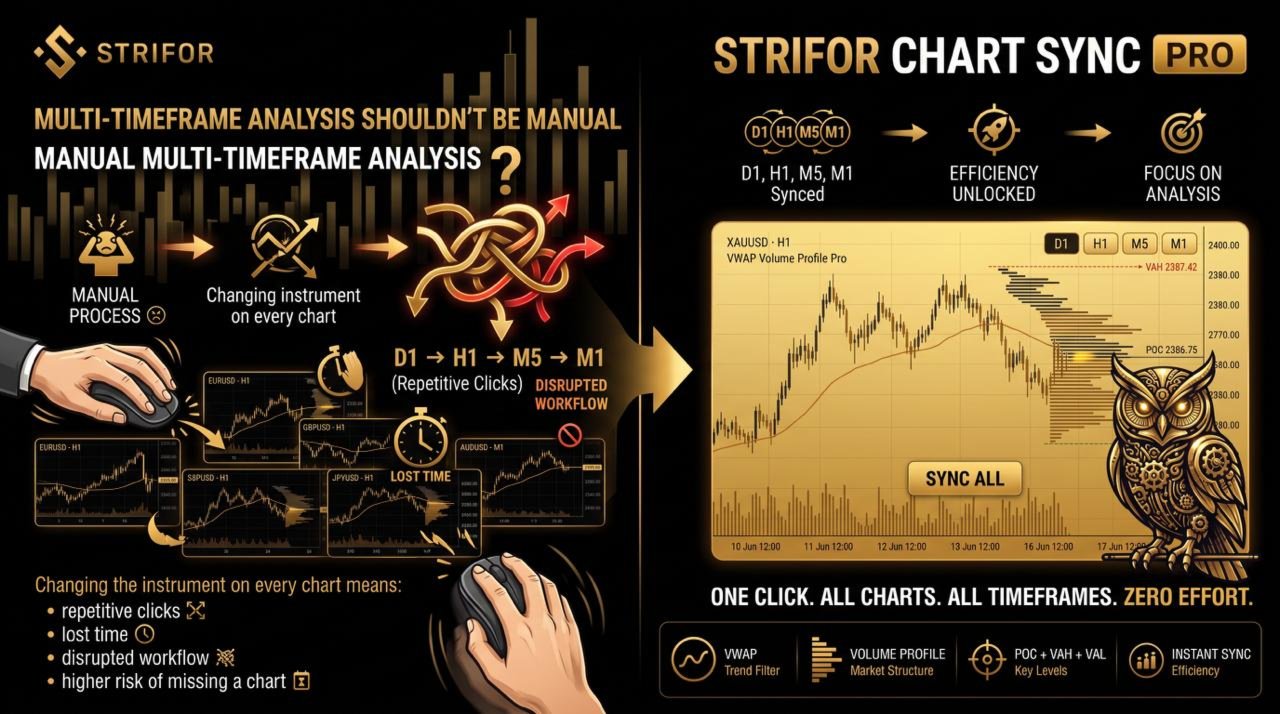
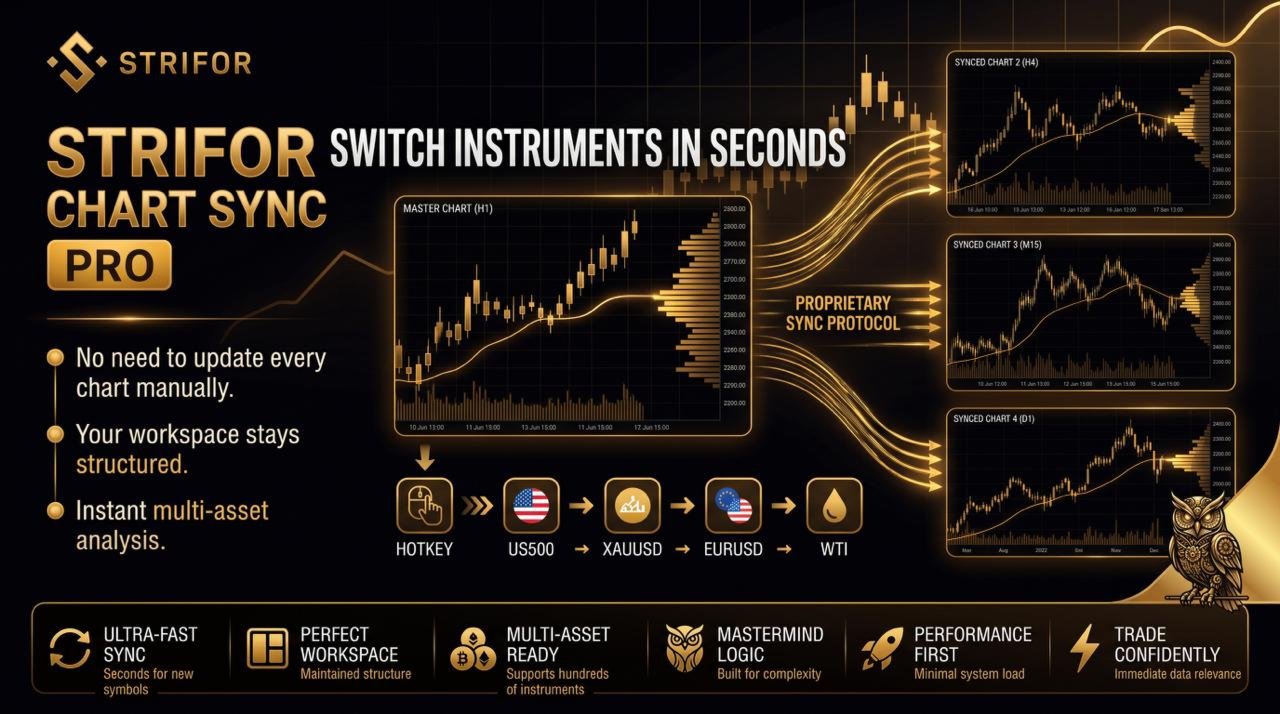
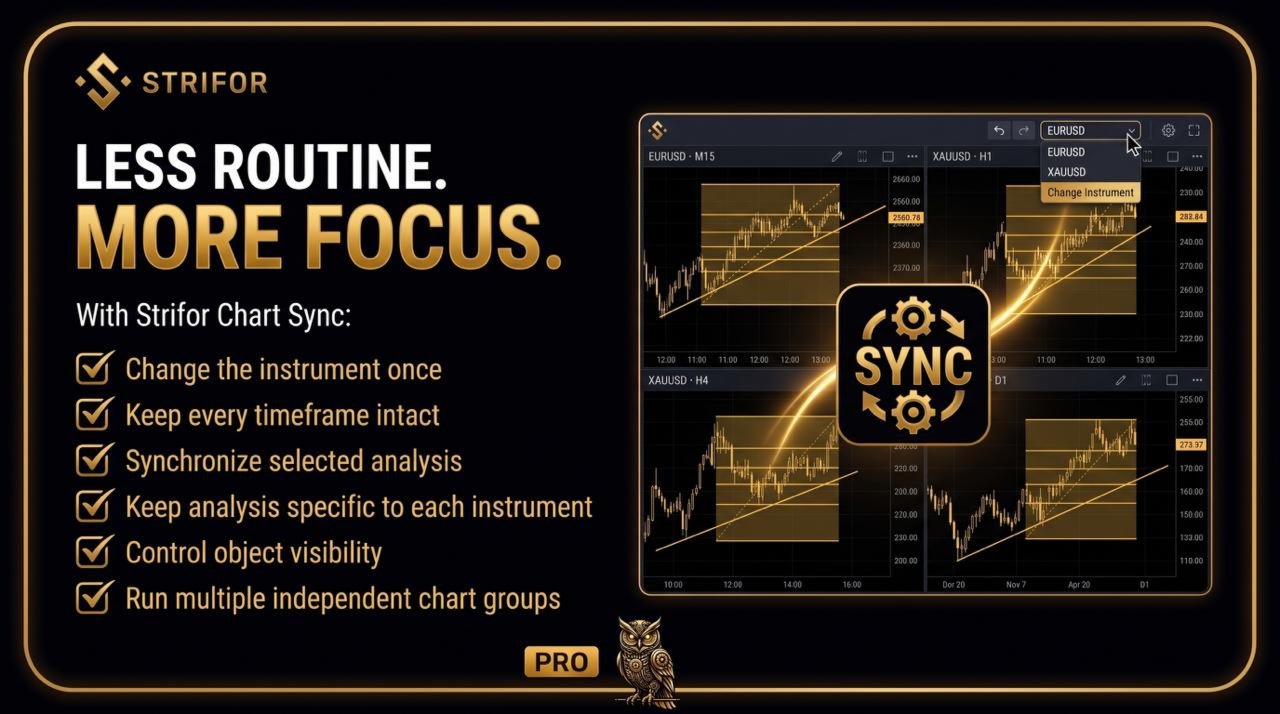
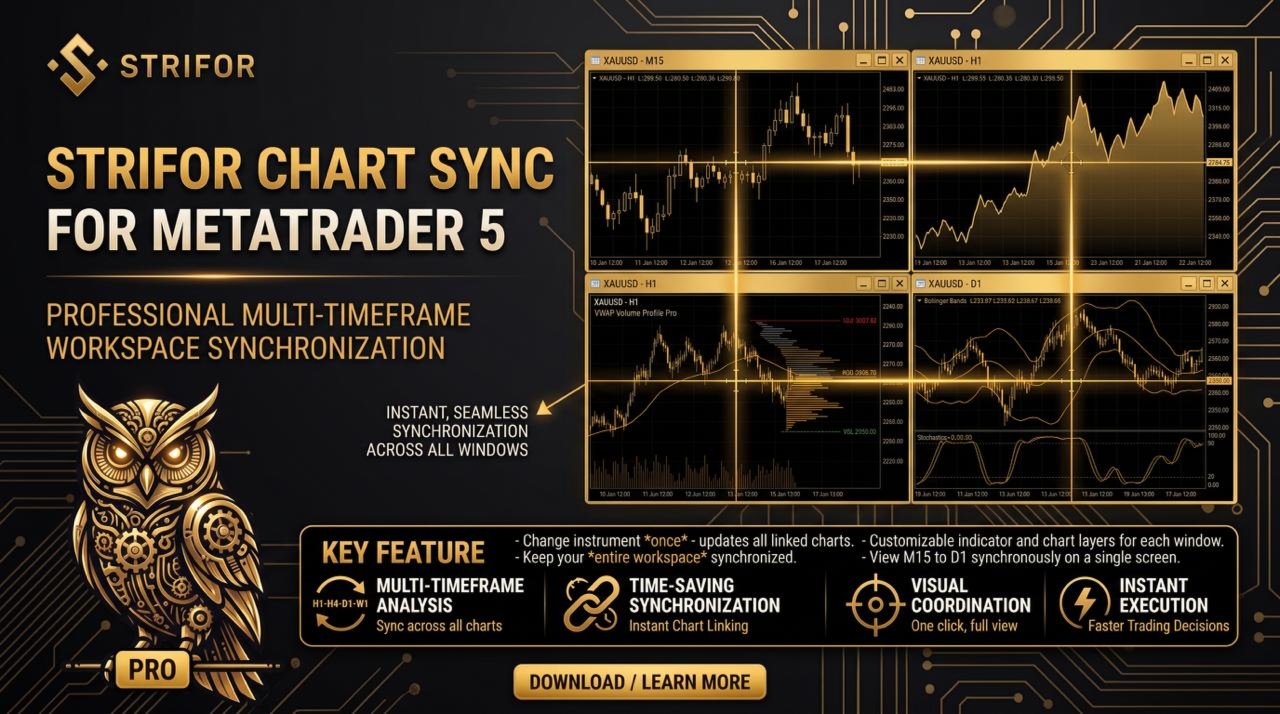
Strifor Chart Sync is an Expert Advisor for MetaTrader 5 that synchronizes multiple charts and helps you organize technical analysis across different timeframes within a single workspace. Change the trading instrument on the main chart, and all connected charts will automatically switch to the same symbol while retaining their individual timeframes and analysis layouts.
Strifor Chart Sync is designed for traders who use multi-timeframe analysis, regularly switch between instruments, and want to reduce the number of manual actions involved in working with charts. The tool helps maintain a consistent view of the market, from identifying the overall direction to analyzing local market structure and looking for potential entry points.
A comprehensive analysis of a trading situation often requires several charts of the same instrument on different timeframes. Strifor Chart Sync brings them together into a single system, allowing each chart to serve its own purpose.
For example, you can organize your workspace as follows:
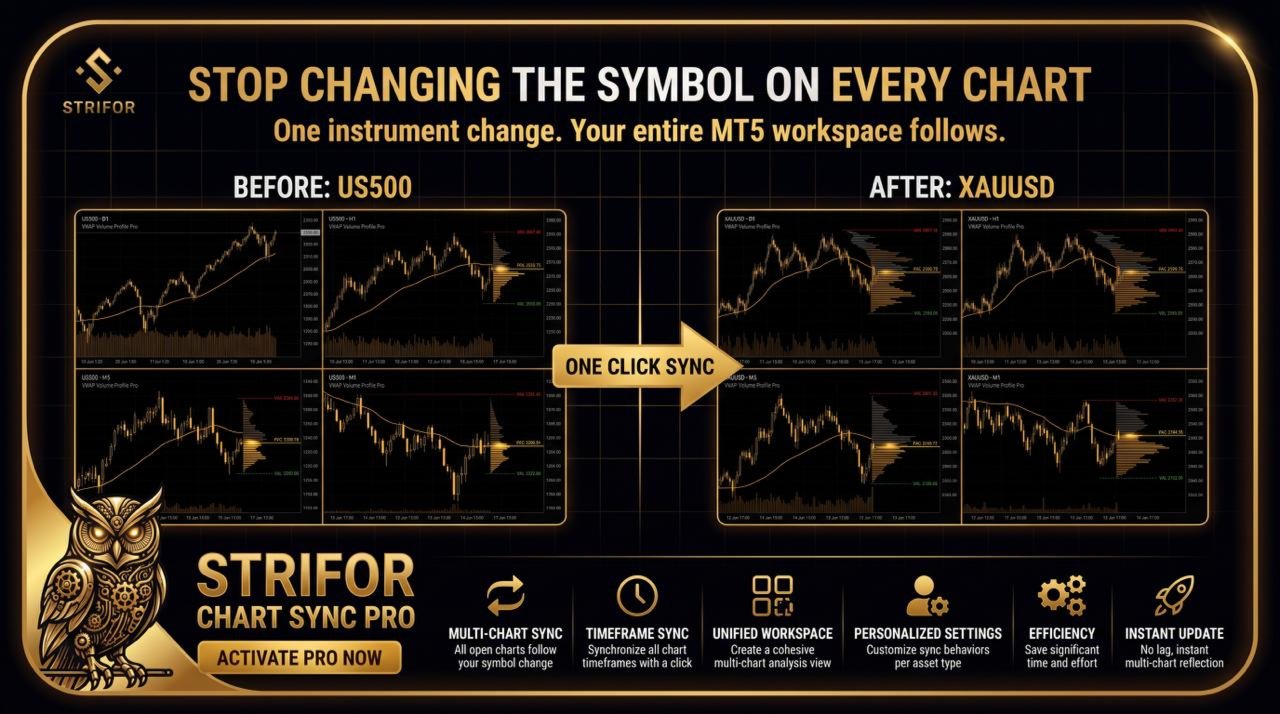
When you change the instrument on the main chart, all linked charts automatically switch to the new symbol while retaining their timeframes.
For example, when you switch from US500 to XAUUSD, the D1, H1, M5, and M1 charts will switch to gold without changing their timeframes. You will not need to update each chart manually.
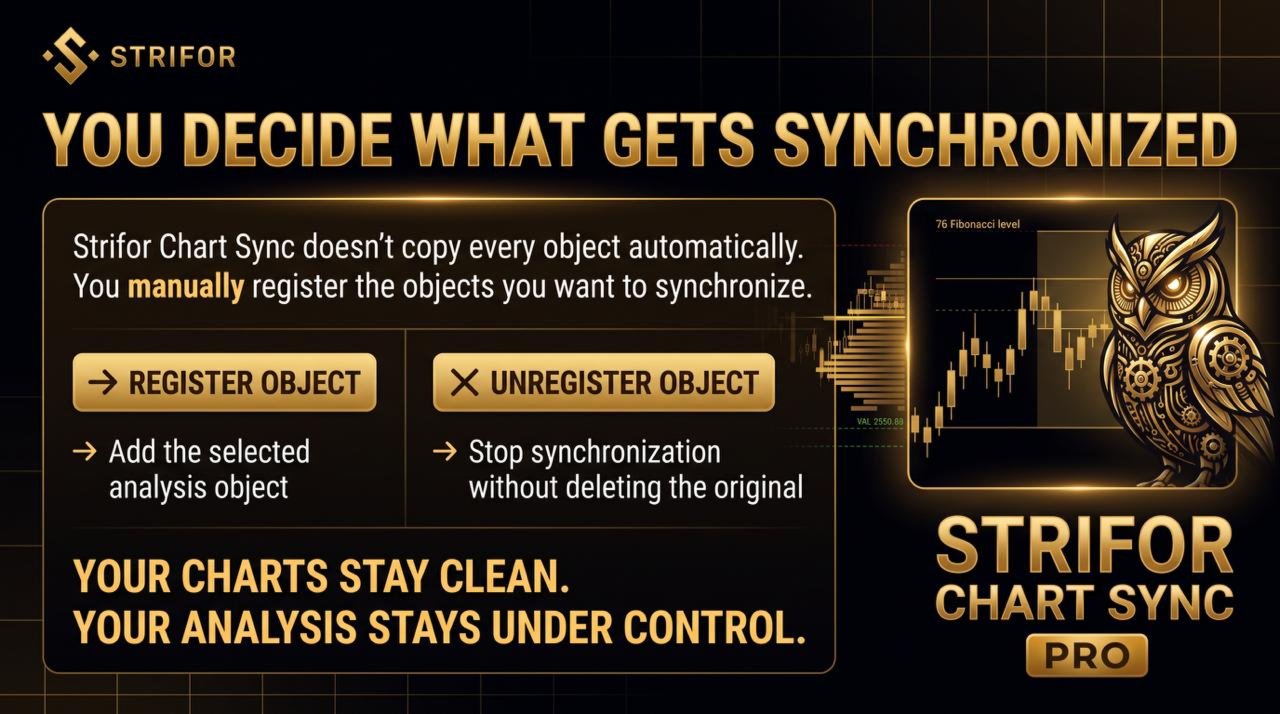
Strifor Chart Sync allows you to transfer selected graphical objects between linked charts. Horizontal lines, trendlines, and other compatible MetaTrader 5 graphical objects are supported.
Synchronization is managed through manual object registration. You decide which analysis elements should appear on linked charts.
To synchronize an object:
When you move a registered object on the Master chart, its position is automatically updated on linked charts that meet the synchronization conditions.
To stop synchronization, select the object and click UNREGISTER OBJECT. The original object will remain on the Master chart but will no longer be transferred to other charts.
Manual registration prevents all graphical elements from being copied automatically, including Pivot levels, VWAP lines, zones, volume profiles, and other objects that third-party indicators and trading tools may create.
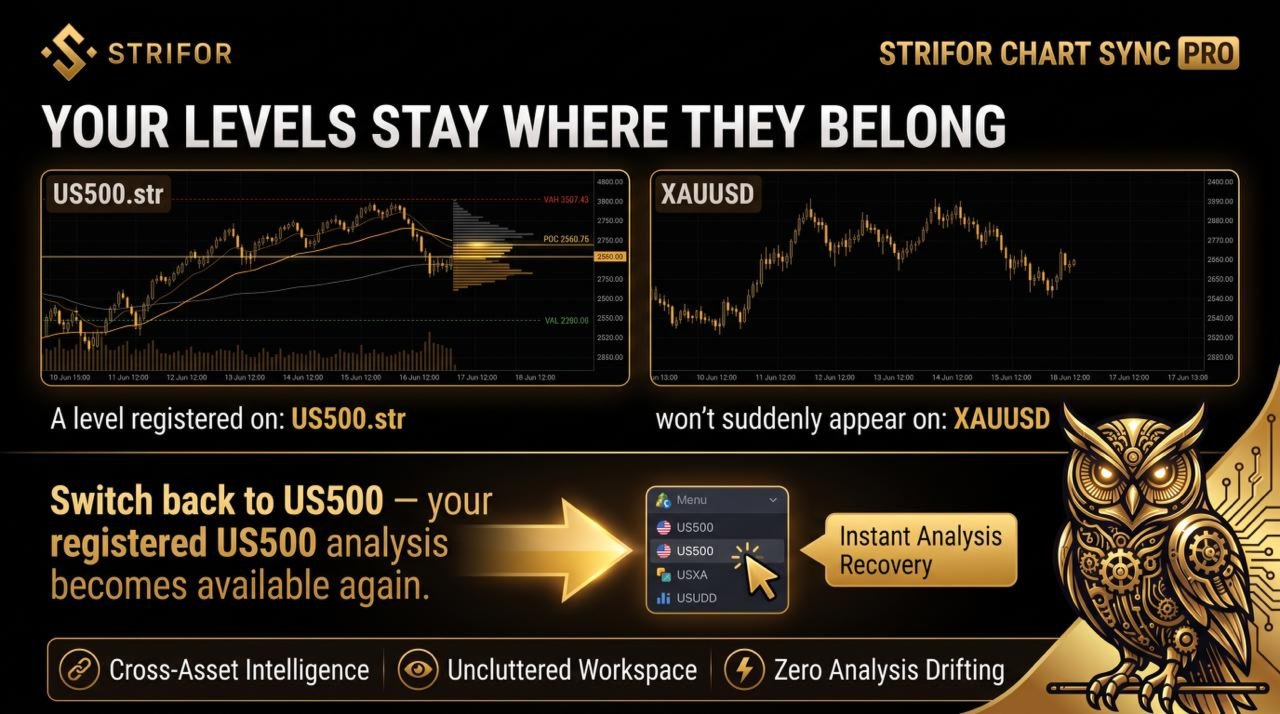
Each registered object is linked to the specific trading instrument for which it was created. This prevents levels and other analysis elements for one asset from being transferred to charts of another.
For example, if you register a level for US500.str, it will synchronize only with the corresponding US500.str charts within the configured group.
When you switch the group to XAUUSD, US500.str levels will not appear on the gold charts, even if their numerical values fall within the current price range. When you return to US500.str, the objects previously registered for that instrument will become available for display again.
This allows you to switch between indices, metals, currency pairs, and other instruments while retaining separate technical analysis markings for each one.
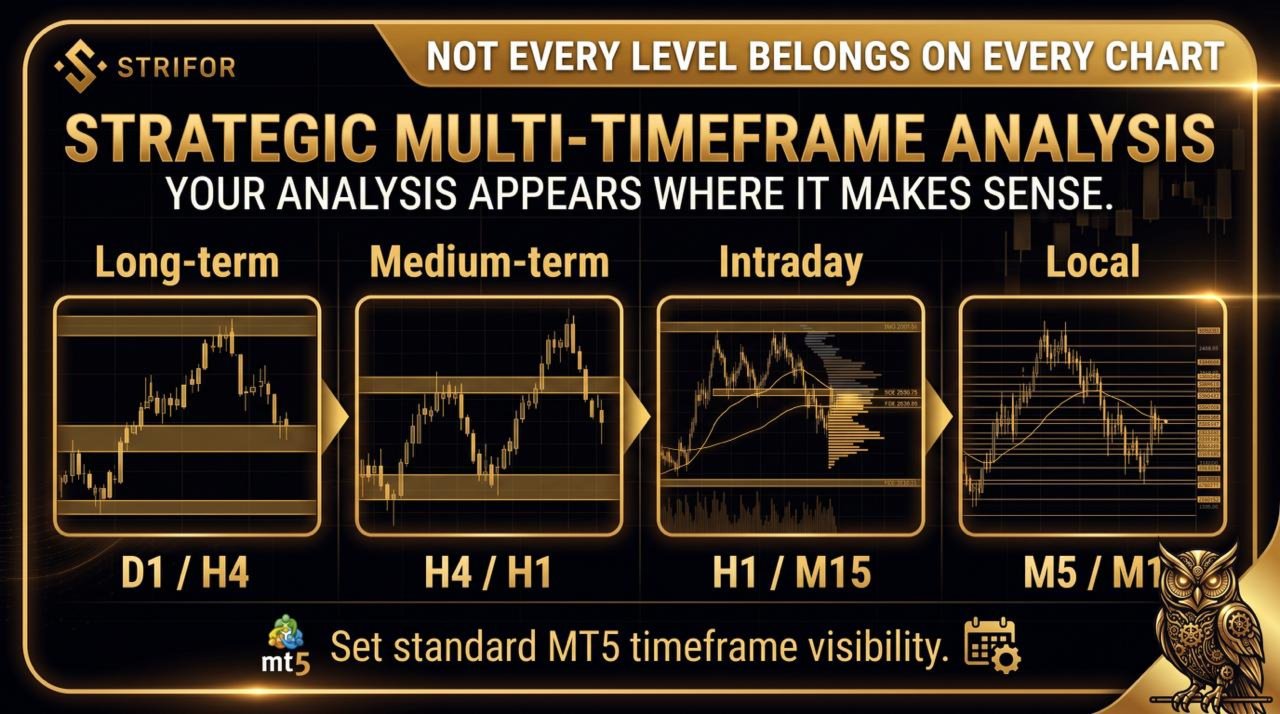
Strifor Chart Sync respects the standard MetaTrader 5 Visibility on timeframes setting, which determines the timeframes on which a particular graphical object is displayed.
For example, you can configure a level to appear only on D1, H4, and M5 while remaining hidden on H1 and M1.
This allows you to structure technical analysis by market timescale:
Registered objects are automatically displayed on the corresponding charts according to their visibility settings and the synchronization conditions.
Strifor Chart Sync organizes charts into synchronized groups with two types of roles.
Master — the main chart that controls the trading instrument within the group.
Slave — connected charts that follow symbol changes on the Master and retain their own timeframes if the corresponding setting is enabled.
Example workspace configuration:
When you change the instrument on the Master, all four charts automatically switch to the new symbol. Each chart retains its role in multi-timeframe analysis.
Strifor Chart Sync supports multiple independent groups within a single MetaTrader 5 profile. Each group operates separately, allowing you to use different analysis structures at the same time.
For example:
Group 1: Entry Point Analysis
Group 2: Medium-Term Analysis
Changes in the first group do not affect the second. You can create multiple independent workspaces with different sets of timeframes and trading instruments.
In addition to synchronizing instruments and graphical objects, Strifor Chart Sync offers additional settings for coordinating chart behavior:
Each of these features can be enabled or disabled to suit your workflow. They are not required to use the core symbol and registered object synchronization features.
Strifor Chart Sync allows you to adapt synchronization to your individual workspace configuration.
Main settings:
Additional settings control the information panel display, notifications, panel position, chart shift, update frequency, and system diagnostics.
For a standard configuration, it is recommended to use exact symbol matching, set KeepChartTimeframe = true, and activate only the synchronization features you need.
To use Strifor Chart Sync, you must attach the Expert Advisor to every chart that should participate in the synchronization system.
Setup procedure:
Once the group is configured, simply change the instrument on the main Master chart, and all connected charts will automatically switch to it.
To synchronize technical analysis markings, register the required graphical objects using the REGISTER OBJECT command.
The tool is useful for traders who:
Strifor Chart Sync turns a set of individual charts into a single system for multi-timeframe analysis. Trading instrument synchronization, timeframe retention, and selective control of graphical objects help organize your workflow and switch between market scenarios more quickly.
Less time spent manually updating charts means more attention to market analysis and assessing trading opportunities.
Change the instrument once. Keep your entire workspace synchronized.
Requirements: MetaTrader 5.
Images from the official MQL5 product gallery, in the original order. The publisher includes promotional illustrations and interface examples; these are not independently verified live-terminal screenshots.




Calculators · Indicators · Risk Management
Calculate MT5 position size from account capital, risk and Stop Loss distance using manual inputs or chart-based calculations.

Indicators
Analyze MT5 market structure with VWAP, Volume Profile, POC, Value Area levels and statistical deviation bands in one indicator.

Indicators
Combine classic Pivot levels, ATR-based price targets and market analytics in one MT5 indicator to plan trading scenarios.

Utilities
Send MT5 trade-event notifications to Telegram chats, groups and channels with customizable messages and direct Telegram Bot API integration.

Risk Management · Utilities
Monitor daily, weekly and monthly trading results in MT5, track risk limits and view remaining risk in a customizable on-chart panel.

Utilities
Automatically set Stop Loss and Take Profit for new MT5 positions using configured risk and actual volume. SmartTrade Panel v1.21 does not open orders.

Risk Management · Utilities
Automate MT5 account-level risk control with loss limits, consecutive-loss monitoring, rolling windows and configurable position closing.

Dashboards · Indicators
View percentage price changes across four timeframes in one compact MT5 dashboard to compare short-term and longer-term market dynamics.
Indicators
Visualize trading sessions, overlaps and session High–Low levels, with automatic time adjustment and flexible chart display settings.

